

When SEOs and developers talk about Interaction to Next Paint (INP), the conversation almost immediately turns to JavaScript. We blame third-party tracking codes, heavy DOM elements, and complex animations. But what if the silent assassin killing your interactivity score is actually your media library?
If you want to pass Core Web Vitals this year, you must learn how to optimize images for INP.
It sounds counterintuitive. Images are a Largest Contentful Paint (LCP) problem, right? Wrong. In 2026, with mobile devices rendering massive, ultra-high-definition visuals, the sheer CPU power required to process those images is causing browsers to freeze, ignoring user taps and clicks.
In this advanced technical guide, we are going to explore the hidden connection between image rendering and the browser’s main thread. We will show you exactly how to stop images from bottlenecking your interactivity, what HTML attributes to add immediately, and why your old lazy-loading habits might be destroying your INP score. Let’s get into it.
Table of Contents
How Do Images Hurt Interaction to Next Paint?
To understand how to fix the problem, you need to understand how browsers actually display an image on a screen. It is not as simple as downloading a file and popping it into the layout.
When a browser encounters an image file, it goes through a multi-step process:
- Downloading: Fetching the bytes from the server or CDN.
- Decoding: Translating those compressed bytes (like a JPEG or AVIF file) into uncompressed pixel data.
- Rasterization & Painting: Drawing those pixels onto the actual screen at the correct size.
Here is the problem: Decoding and rasterization happen on the browser’s main thread.
The main thread is the same single lane of traffic responsible for responding to user interactions. If a user tries to tap an “Add to Cart” button or open a mobile hamburger menu at the exact millisecond the browser is decoding a massive 3MB hero image, the browser cannot respond. The interaction is blocked, your INP spikes over 200 milliseconds, and Google flags your page as “Poor.”
To master Interaction to Next Paint optimization 2026, you have to get your images out of the main thread’s way.
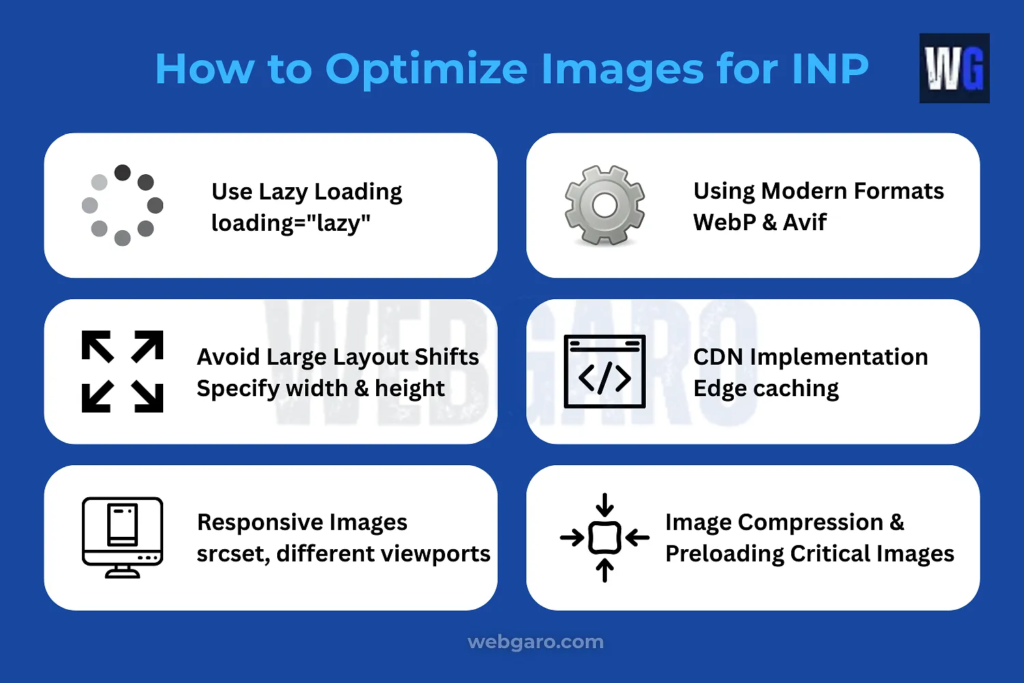
How to Optimize Images for INP
Think INP is just a JavaScript problem? Think again. Learn how to optimize images for INP, reduce decode times, and fix your Core Web Vitals.
Step 1: The Magic of decoding=”async”
If there is one immediate takeaway from this guide, it is this: You need to implement image decoding async across your non-critical media.
Introduced to modern browsers over the last few years, the decoding attribute gives you direct control over how the browser schedules the processing of an image.
How it Works:
- decoding=”sync”: Forces the browser to decode the image synchronously. It will pause other main-thread tasks (like responding to clicks) to finish drawing the image.
- decoding=”async”: Tells the browser to decode the image in the background, entirely off the main thread. The browser will prioritize user interactions and JavaScript execution, only painting the image when the main thread is idle.
Implementation Best Practices:
You should add decoding=”async” to almost every image on your website that is below the fold eg.
<img src="product-photo.avif" alt="Blue running shoe" loading="lazy" decoding="async" width="800" height="600">
What about the Hero Image?
For your Largest Contentful Paint (LCP) image at the very top of the screen, you usually want to use decoding=”sync” (or leave the attribute off, as auto will usually default to sync for in-viewport images).
If you force your LCP image to decode asynchronously, you might accidentally delay your LCP score while trying to fix your INP.
Step 2: Ditch Heavy GIFs for Modern Formats
We all love a good reaction GIF in a blog post, but animated GIFs are absolute INP destroyers.
GIF is an ancient format. It doesn’t use modern video compression; it essentially stacks dozens of individual images on top of each other. When a browser has to render a GIF, it has to constantly decode and paint every single frame on the main thread, in a continuous loop.
This creates constant micro-stutters. If a user clicks a link while the GIF is transitioning frames, the click is delayed.
The Fix:
If you want to reduce image decode time and save your INP, you must stop using the .gif format.
Convert all your animated graphics to looping, muted MP4 videos, or use animated WebP/AVIF formats. An animated AVIF file is not only 80% smaller in file size, but modern browsers can hand off the decoding of these modern formats to the device’s GPU (Graphics Processing Unit), completely bypassing the CPU’s main thread.
Learn more: WebP vs AVIF 2026: The Ultimate SEO Showdown

Step 3: Does Lazy Loading Affect INP? (The JavaScript Trap)
One of the most common questions technical SEOs get is, “does lazy loading affect INP?” The answer is: Yes, if you are doing it the old-fashioned way.
Before browsers introduced the native loading=”lazy” HTML attribute, the only way to lazy-load an image was to use JavaScript libraries (like LazySizes.js). These libraries work by attaching “scroll event listeners” to the window. Every time the user scrolls a single pixel, the JavaScript fires on the main thread to calculate if an image has entered the viewport.
This constant bombardment of JavaScript scroll events clogs the main thread. When the user stops scrolling and taps a button, the browser is still busy executing the lazy-load script.
The Solution:
- Uninstall JavaScript Lazy Loaders: Completely remove any WordPress plugins or JS scripts that force JS-based lazy loading.
- Use Native HTML: Rely strictly on the native browser attribute: <img src=”…” loading=”lazy”>. Native lazy loading is handled at the browser level, avoiding main thread JavaScript execution entirely.
Step 4: Stop Sizing Images with CSS Alone
Most web developers know that failing to include width and height attributes on an <img> tag causes Cumulative Layout Shift (CLS). But competitors rarely talk about how this omission also secretly damages your INP.
When you don’t declare the physical space an image will take up in the HTML, and instead rely on CSS like width: 100%; height: auto;, you force the browser into a “Reflow.”
A reflow happens when the image finally downloads, and the browser suddenly realizes it is 1200 pixels tall. The browser must pause everything, recalculate the geometry of the entire page, and push all the text and buttons down.
Reflows are highly CPU-intensive and happen, you guessed it, on the main thread. If a user is interacting with the page during a massive CSS recalculation and reflow, their interaction is blocked. By simply adding width and height attributes to your HTML, the browser reserves the box instantly, avoiding the heavy CPU recalculation later.
Step 5: The CSS background-image Trap
While HTML <img> tags are highly optimizable, CSS background-image properties are notoriously difficult for browsers to prioritize.
Browsers cannot discover CSS background images until they have downloaded the HTML, downloaded the CSS file, parsed the CSS Object Model (CSSOM), and matched the CSS selectors to the DOM nodes. This delays the decoding process significantly.
Worse, background images cannot utilize the decoding=”async” attribute or the loading=”lazy” attribute natively.
Best Practice:
If an image is a critical part of the content (like a hero banner), do not use a CSS background image. Use a standard HTML <picture> or <img> element with object-fit: cover; applied in the CSS. This gives you all the styling flexibility of a background image, but allows you to utilize modern HTML attributes to protect your INP and LCP scores.
Why Image INP Matters for Mobile Users
If you are running a local business, a plumbing service, a law firm, a restaurant, your traffic is overwhelmingly mobile.
We often test our websites on top-of-the-line MacBook Pros or the newest iPhones, where the CPU is so powerful it can brute-force its way through terrible code and massive image decoding. But your local customers might be searching for “emergency plumber near me” on a three-year-old mid-tier Android phone on a hot summer day (which throttles the device’s CPU).
On these devices, image decoding takes exponentially longer. If a local customer lands on your site and tries to quickly tap your “Call Now” sticky button, but their phone’s CPU is locked up decoding a massive, unoptimized 4K background image of your office, that button won’t respond.
They will get frustrated, hit the back button, and call your competitor. Optimizing images for INP isn’t just about Google’s algorithm; it is directly tied to your local lead conversion rates.
FAQ: Images and INP
It can, if applied to the hero image. You should reserve decoding=”async” for below-the-fold images. Keep your LCP image set to decoding=”sync” (or omit the attribute) so the browser prioritizes rendering it immediately.
Run a trace in the Chrome DevTools Performance panel. Look at the “Main” track. If you see long, solid blocks of color labeled “Image Decode” or “Rasterize Paint” coinciding with red interaction delays, your media files are the bottleneck.
Yes and no. While file size (KB) affects download time, it is the image’s physical dimensions (e.g., 4000×3000 pixels) and format complexity that affect decode time. A heavily compressed JPEG might be small in KB, but if it has massive pixel dimensions, it will still hog the CPU to decode. Always scale images to their maximum display size.
Conclusion: Take Control of Your Main Thread
As we navigate the complexities of SEO in 2026, the definition of a “fast website” has evolved. It is no longer just about getting pixels on the screen quickly; it is about ensuring those pixels don’t hijack the device’s processor.
To optimize images for INP, you have to stop treating images as simple visual assets and start treating them as software rendering tasks.
By eliminating heavy GIFs, auditing your lazy-loading scripts, pre-allocating HTML dimensions, and aggressively utilizing the decoding=”async” attribute, you can free up the main thread. The result? A buttery-smooth, instantaneously interactive website that Google loves and users convert on.
We Want to Hear From You
Have you audited your image decoding times yet? Try adding decoding=”async” to your footer and sidebar images today and let us know in the comments if you saw a drop in your Total Blocking Time!
If you’re struggling with a specific performance plugin, drop the name below and our community can help you configure it for 2026.